

This page covers how to manage plans in the app. For an explanation of how plans work, what the pricing models mean, and how plans connect to subscriptions, see Plans explained in Core Concepts.
The plans list
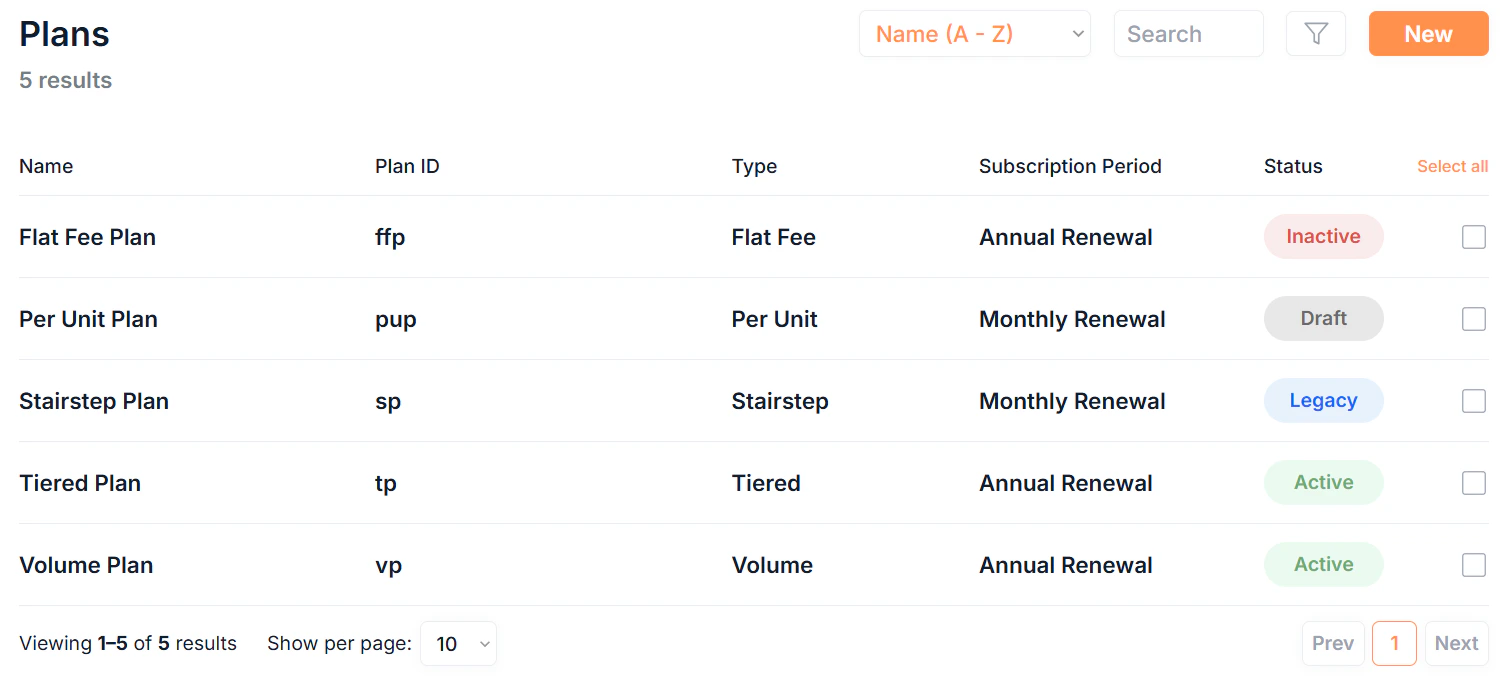
Click Plans in the sidebar to see all plans in your organisation.Filtering and searching
- Search: free text search across all plan fields
- Sort: order by Name or Date Created
- Filter: filter by Status, Plan Type, or Category
What each row shows
Each plan row displays:
Click any Name to open the plan’s details page.
Creating a plan
Click New in the top right to open the new plan form. Plan creation is a three or four step process depending on the plan type.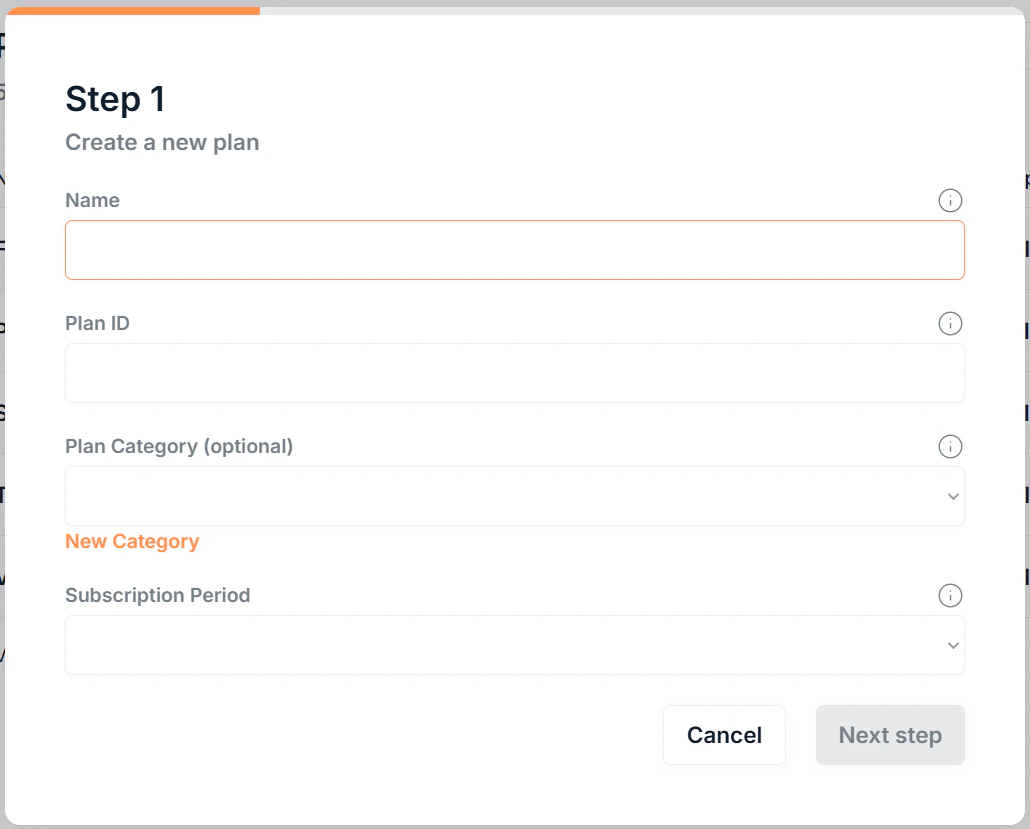
1
Basic details
Click Next step to continue.
2
Billing
First, select the currency for this plan.Then choose a Plan Type. This determines how the subscription amount is calculated at each renewal:Understand the different plan types with our example plans:Click Next step to continue.
For Tiered, Volume, and Stairstep plans, leave the final tier’s To blank to set the final open-ended upper limit.
3
Units
This step is not shown for Flat Fee plan types.
Click Next step to continue.
4
Xero account mapping
Map each revenue type to a Xero account code. This controls which account invoices post to based on whether the subscription is new, renewing, or expanding.
Leave any field blank to fall back to the company-level defaults set in Company Settings.Click Save to create the plan.
Plan details
Click any plan’s Name to open its details page. The details page is split into two sections: Plan details: shows the name, plan ID, plan category, unit types (excluding Flat Fee), minimum units (excluding Flat Fee), subscription period, currency, and xero account mappings. Fee structure: shows the plan type and pricing structure (full tier or unit pricing configuration).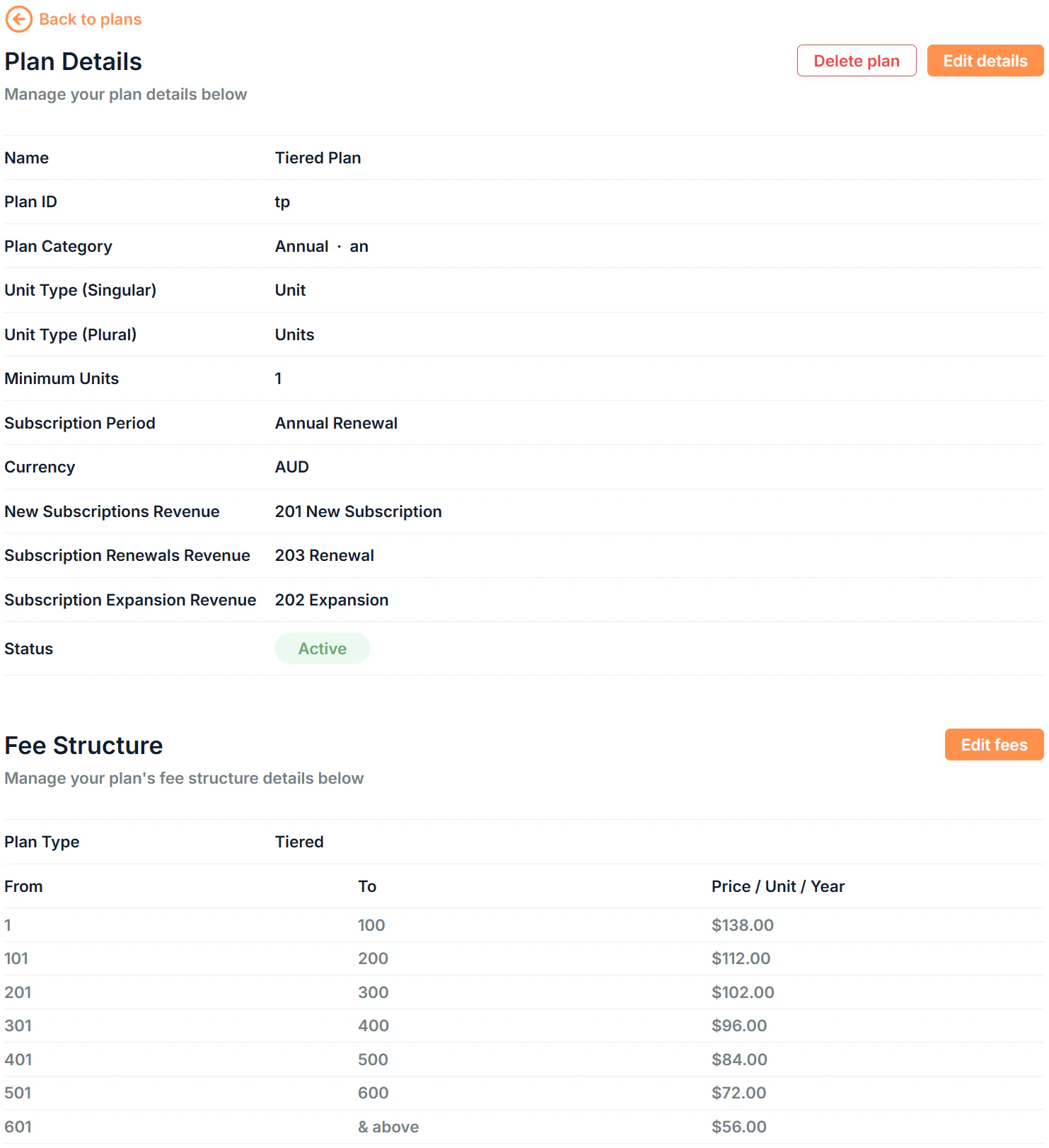
Plan statuses
Set a plan to Legacy when you want to keep existing subscriptions running on it but stop new ones being created. Set it to Inactive to retire it without deleting it. Plans already attached to active subscriptions can only be set to **Active **or Legacy.
Editing a plan
Plans have two separate edit forms depending on what you need to change.Editing plan details
Click Edit details on the plan details page to update:- Name
- Plan ID
- Plan Category
- Status
- Unit Types (singular or plural)
- Minimum Units
- Subscription Period
- Currency
- Xero account mappings
Editing the fee structure
Click Edit fees to update the pricing configuration.Bulk actions
Select multiple plans in the list by clicking the of each plan to:- Bulk Edit: update the name, category, unit type, or status across multiple plans at once
- Bulk Delete: permanently remove multiple plans (requires confirmation)
When bulk editing, leave a field blank to leave that value unchanged for the selected plans.