The invoices list
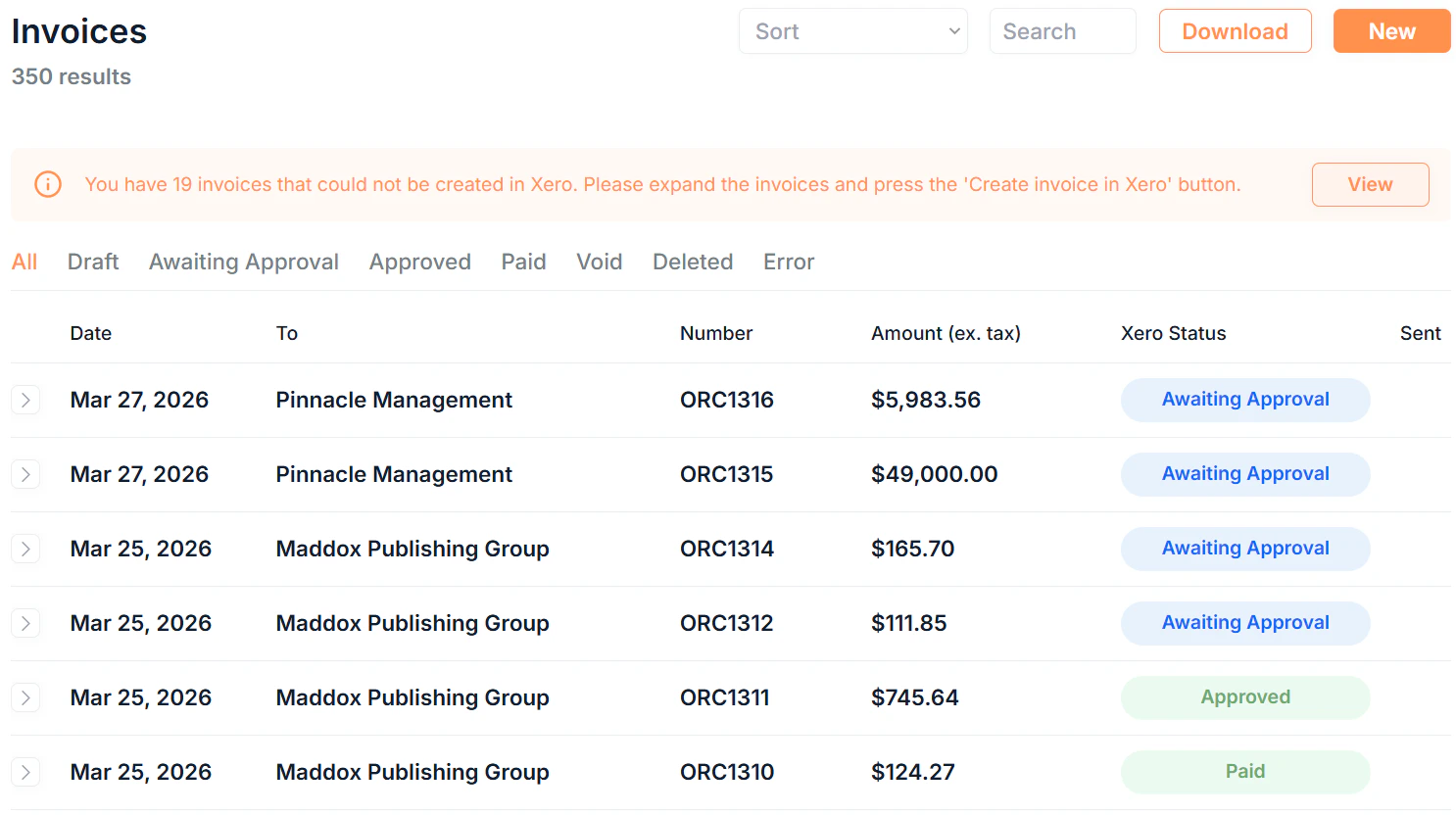
Click Invoices in the sidebar to see all invoices in your organisation.Tabs
Filter the list by status using the tabs at the top:Filtering and searching
- Search: free text search across invoice fields
- Sort: order by date or other fields
- Download: export all line items in your organisation as a CSV file
What each row shows
Each invoice row displays:
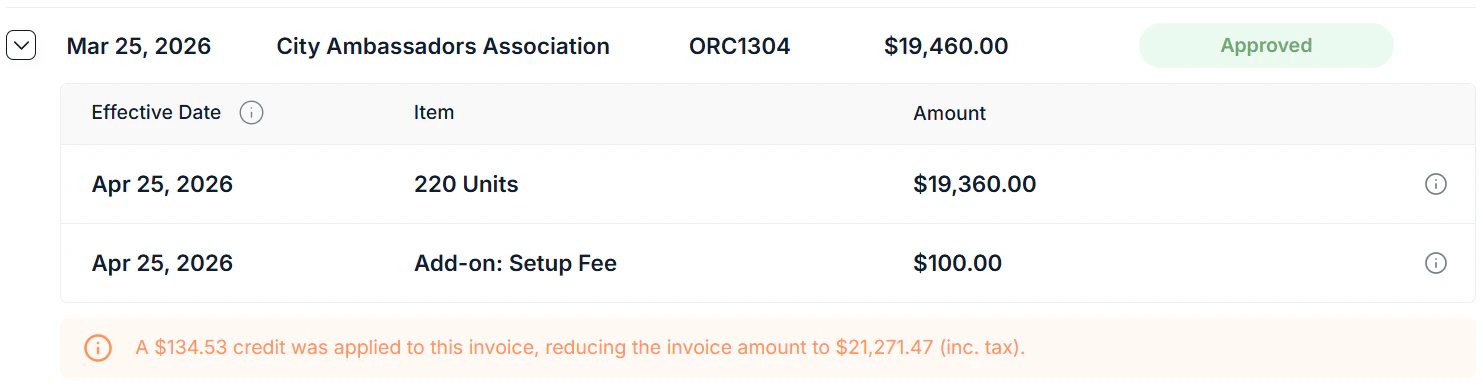
Click the on any invoice to see the line items and actions available for that invoice without leaving the list.
Attention needed
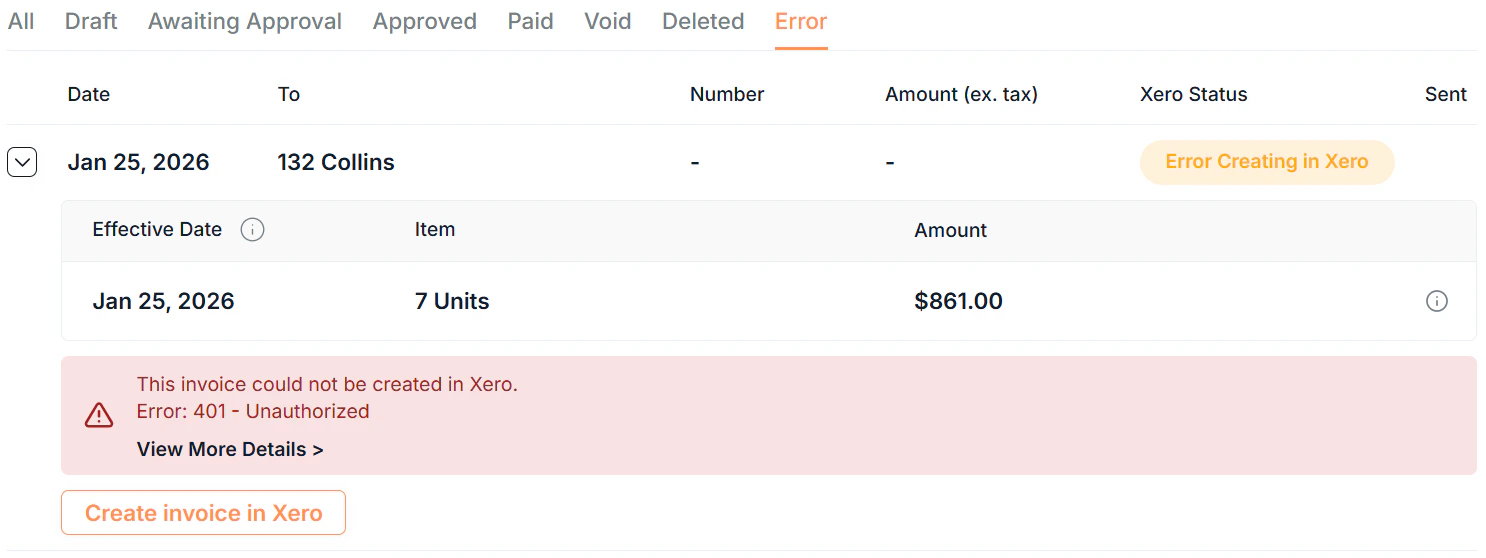
When one or more invoices have errors or require action, an Attention Needed banner appears at the top of the Invoices page. Click View to navigate to the affected invoices. Individual invoice rows can also surface alerts and show more information:- Error prompt: shown when the invoice failed to create or sync correctly in Xero
- Negative amount prompt: shown when the invoice was deleted or voided after modification because there was no longer a chargebale amount
- Credit note prompt: shown when a credit note has been allocated to reduce the invoice’s balance
Invoice actions
Each invoice row has actions available based on its current status:- Create/Recreate invoice in Xero: re-sends the invoice to Xero, useful when an invoice errored on creation
- Modify invoice: adjust the invoice details
- Delete/Void invoice in Xero: removes or voids the invoice in Xero (requires confirmation). If this was the most recent invoice on the subscription, an Attention Needed banner will appear on the associated subscription, where you can take recommended actions.
- Delete invoice in Saasybill: permanently removes the invoice in Saasybill (requires confirmation). This is only available if the invoice has already been deleted or voided in Xero, and it is not currently triggering an Attention Needed banner.
Creating an invoice
Invoices in Saasybill are always generated from subscription updates or renewals. Click New in the top right to open the new invoice form.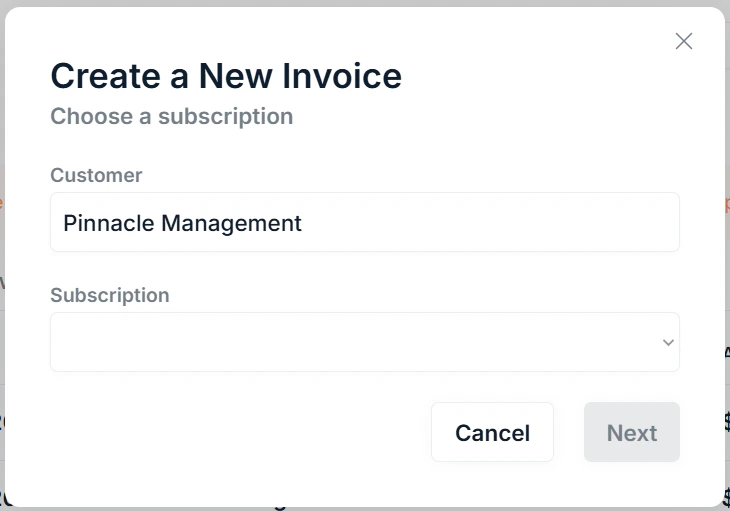
1
Select a customer
Search for and select the customer you want to invoice
2
Select a subscription
Once a customer is selected, choose the subscription to update from the dropdown. If the customer has no applicable subscriptions, a message will appear.Click Next to continue.
3
Update units
Change the number of units on the subscription and select the appropriate proration behaviour.Click Confirm to update the subscription.
Updating the units here follows the same process as any other place in the app. See Subscriptions for more details.
What happens when you create an invoice
When you complete this flow:- The subscription is updated
- If there is a chargeable amount, an invoice is created and synced to Xero
- Any invoices created follow the subscription’s billing rules
Invoice due date and minimum invoice amount settings are configured in Company Settings and can be overridden at the subscription level. See Subscriptions for subscription-level overrides.
Invoice line items
Expand any invoice by clicking to show its line items. Each line item corresponds to a billable component of the subscription: the base plan amount, any add-ons, and any prorated charges from a mid-cycle unit change. See more details of any individual line item by clicking .