

This page covers how to use the Subscriptions section of the app. For a conceptual explanation of how subscriptions work, what drives invoices, and how lifecycle states behave, see Subscriptions explained in Core Concepts.
The subscriptions list
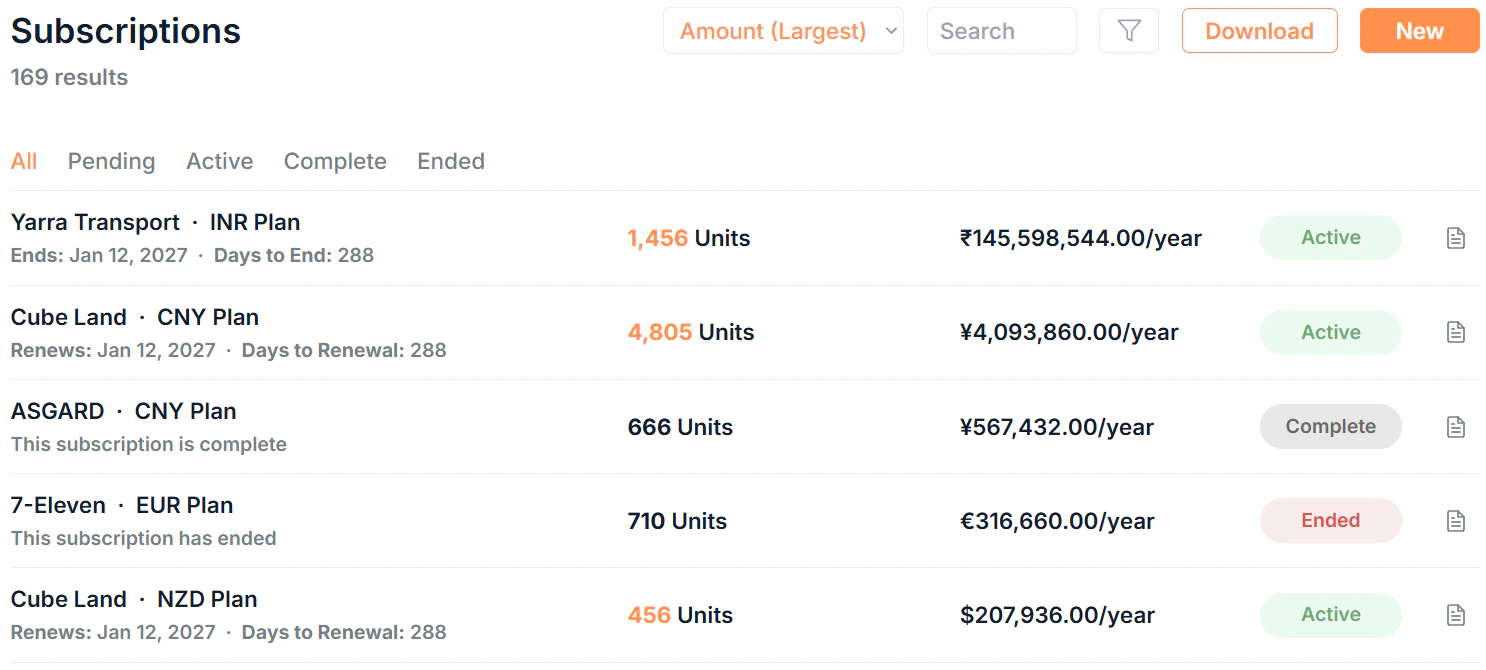
Click Subscriptions in the sidebar to see all subscriptions in your organisation.Tabs
Filter the list by status using the tabs at the top:Filtering and searching
- Search: free text search across subscription fields
- Sort: order by date or other fields
- Filter: filter by Start Date, Renewal Date, or End Date
- Download: export all subscriptions in your organisation as a CSV file
What each row shows
Each subscription row displays:Attention needed
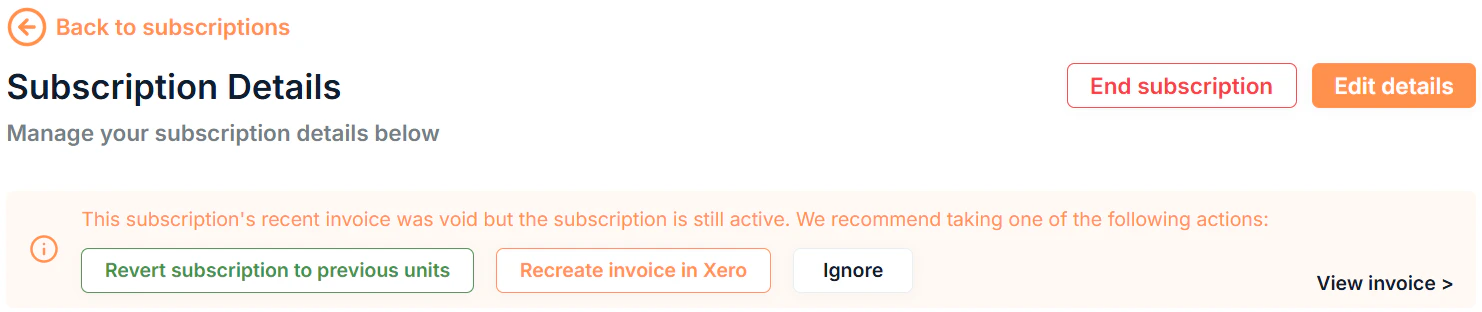
When one or more subscriptions require action, such as an invoice discrepancy or a credit note that needs allocating, an Attention Needed banner appears at the top of the page. Click View to go to the affected subscription.Attention needed prompts on details page
Two types of alerts can appear at the top of the subscription details page:- Invoice attention: shown when the most recent invoice has a discrepancy.
- Credit note attention: shown when a credit note requires action.
Creating a subscription
Click New in the top right to open the new subscription form. You can also create a subscription directly from a customer’s details page by clicking Add.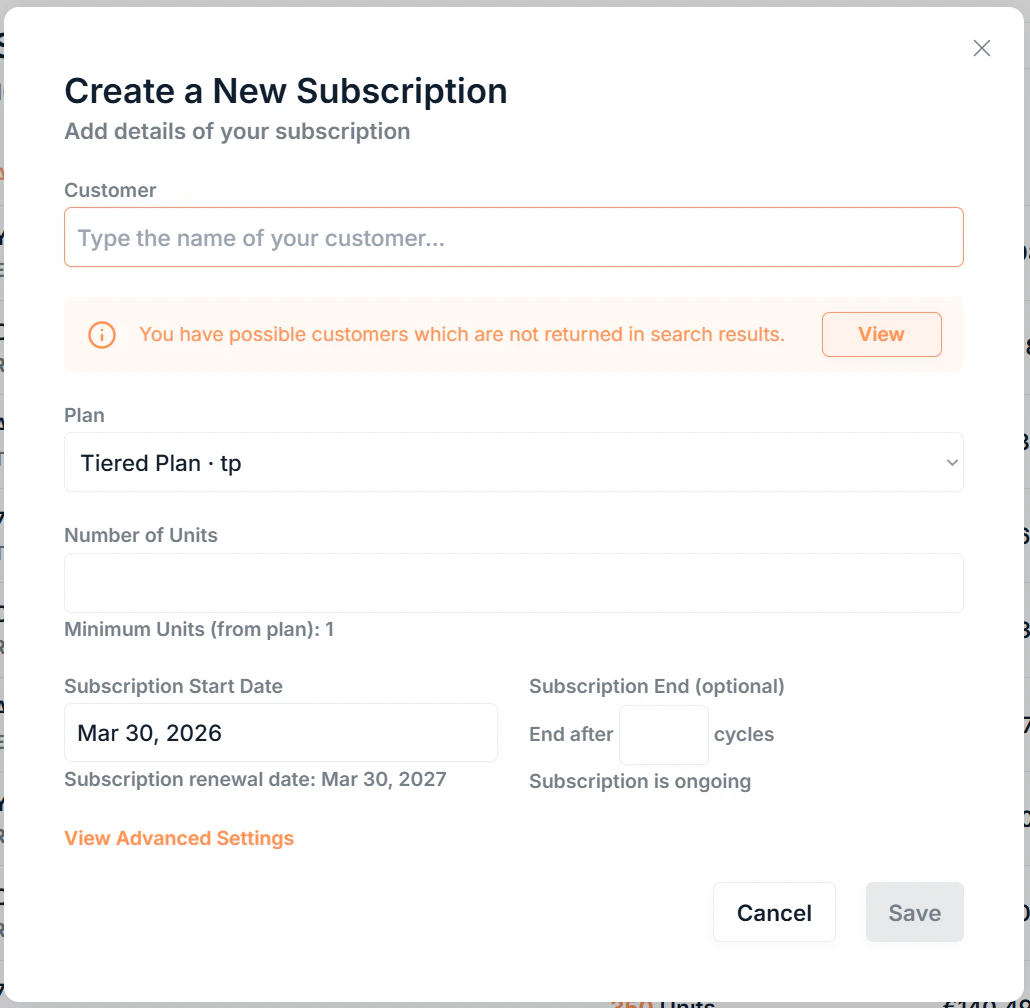
Required fields
Customer: search for and select the customer. If expected customers aren’t appearing, a prompt will suggest how to find them. Plan: select the plan that defines the pricing and billing structure. The plan’s subscription period determines when the first renewal will occur. Number of Units: enter the total unit count. This must be above the plan’s minimum units. Subscription Start Date: the date billing begins. The estimated renewal date is shown automatically below the picker.If the estimated renewal date is within the Invoice Create Days set in your Company Settings, Saasybill will confirm that the subscription will renew immediately on save (unless you are in Setup Mode).
Optional fields
Subscription End: set the subscription to automatically end after a specified number of billing cycles. The estimated end date is shown once you enter a cycle count.Advanced settings
Click View Advanced Settings to access:
Click Save to create the subscription. If you are not in Setup Mode, the appropriate invoice will be created in Xero immediately.
Subscription details
Click any subscription’s Name to open its details page. The details page is split into up to six sections depending on the configuration.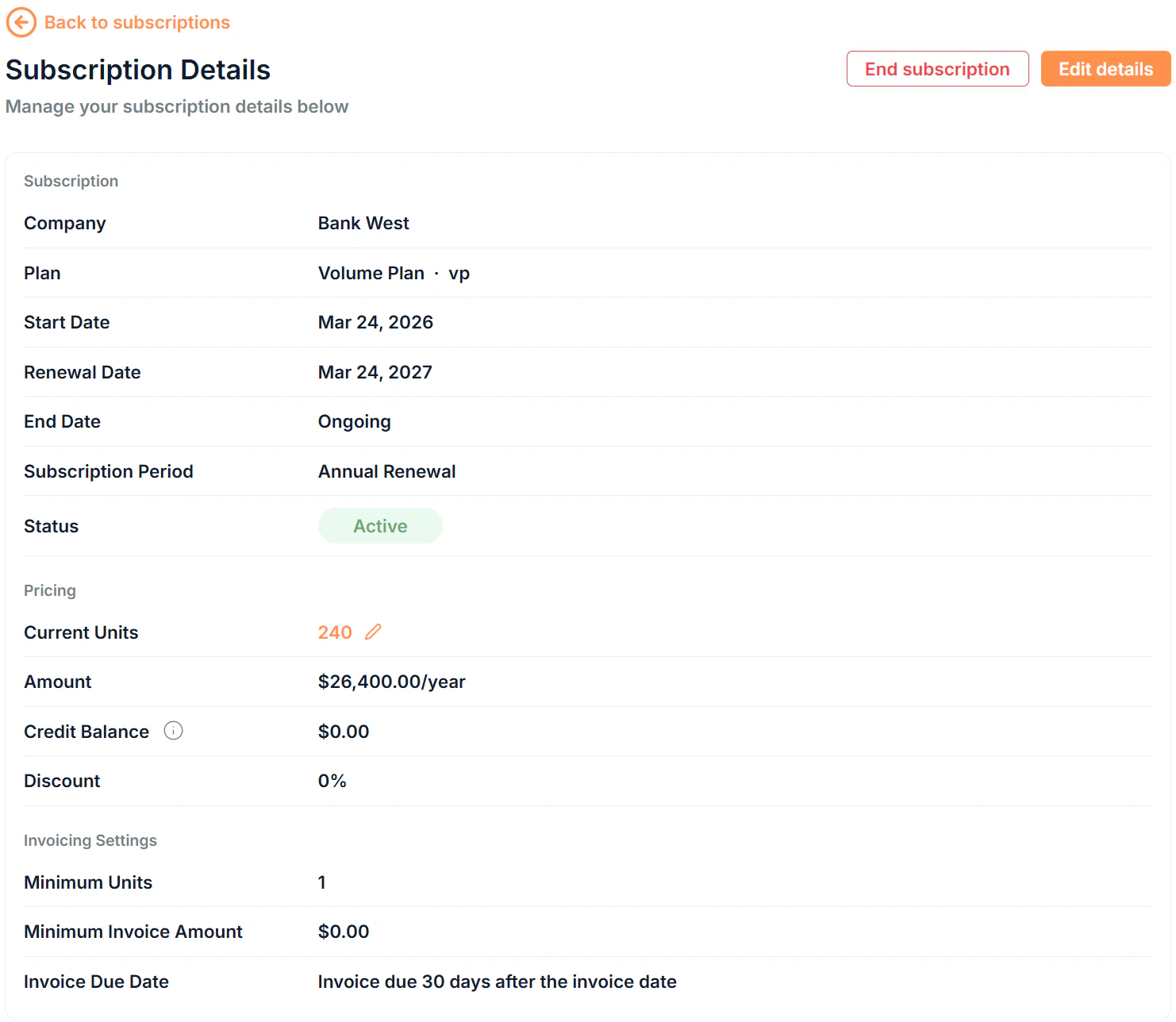
Subscription Details
Shows the general details and settings of the subscription.Subscription
Pricing
Invoicing settings
Add-ons
The Add-ons section lists all add-ons currently attached to the subscription. Each row shows the add-on’s name, add-on ID, description, and price per billing period.You cannot remove add-ons once they have been added to a subscription.
Add-ons can only be added to Pending subscriptions.
Invoices
The Invoices section shows all invoices that have been generated on this subscription. Each invoice row displays:
Click the on any invoice to expand it and see the line items and actions available for that invoice.
For more information on invoices, see the Invoices documentation.
Invoices are synced to and managed in Xero. To update an invoice’s status, change it in Xero.
Deferred Line Items
The Deferred Line Items section shows line items that have been generated but not yet invoiced. They will be included in the next renewal invoice when the subscription renews. Each line item row shows:
If you need to invoice a line item before the scheduled renewal date, click Invoice now. This immediately creates an invoice in Xero for that line item and it will no longer be billed on renewal.
Credit Notes
The Credit Notes section shows all credit notes that have been generated on this subscription. Each credit note row displays:
Click the on any credit note to expand it and see the line items and actions available for that credit note.
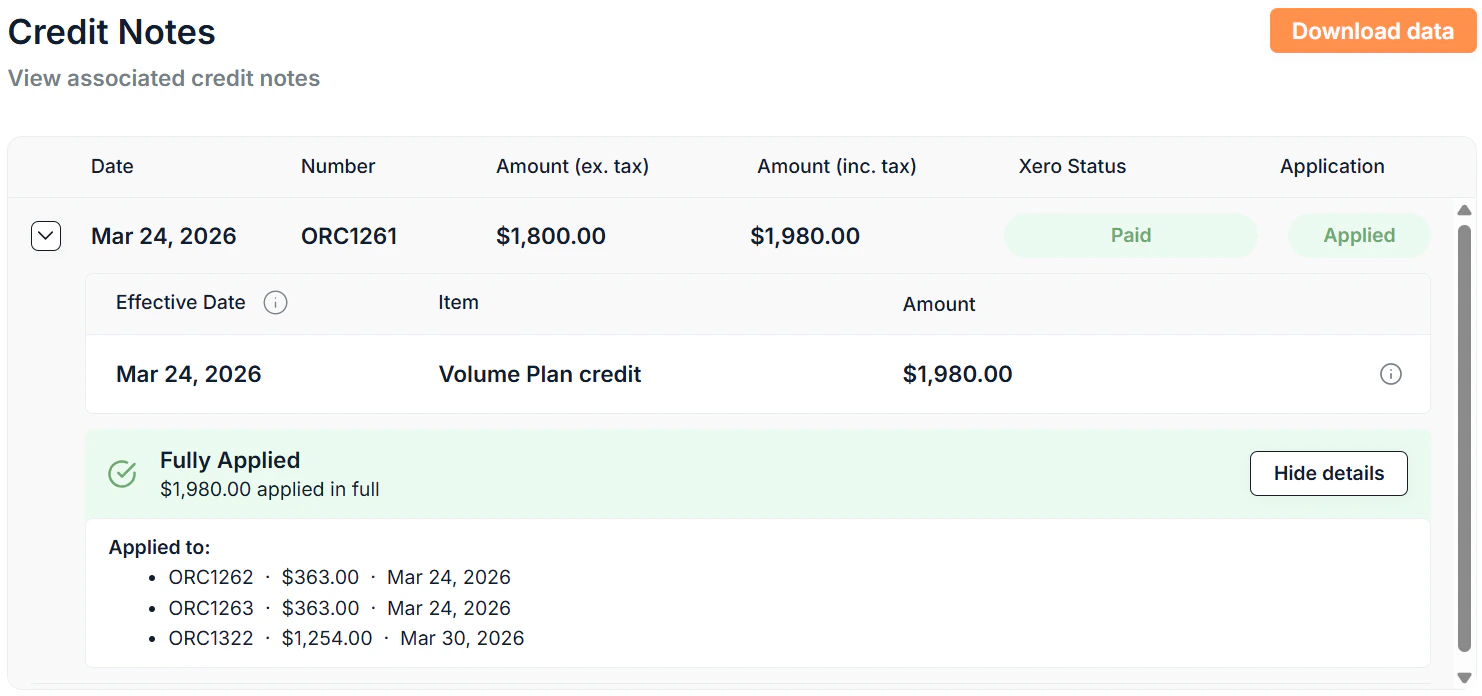
Credit notes are generated automatically by Saasybill when an increase in units results in a lesser payable amount. They are synced to and managed in Xero. For more information, see Billing Changes.
Subscription History
The history table shows every unit change over the subscription’s lifetime:
Click Download Data to export the history as a CSV file.
You can also click the of any subscription in the subscriptions list to view a simplified unit change history at a glance.
Updating units
To update the number of units on an active subscription, click the current units in the Pricing section on the subscription details page. You can also update units directly from the subscriptions list row by clicking the units. An icon will show if the units can be updated.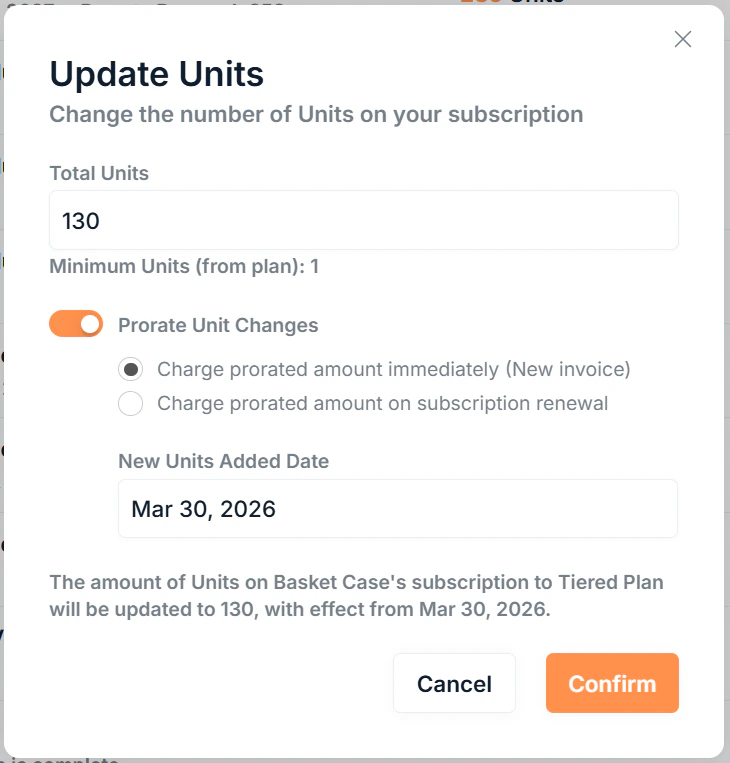
- Immediate: takes effect from the chosen effective date; a prorated invoice is created in Xero immediately
- On Renewal: takes effect from the chosen effective date; a prorated line item is added to the Deferred Line Items table to be billed on the renewal invoice
Credit notes are always generated as a prorated update and are creditted immediately. You can not adjust the proration behaviour in this case.
For a full explanation of how proration is calculated and when invoices vs credit notes are created, see Billing changes.
Ending a subscription
From the subscription details page you have three options:
To end a subscription: open the details page, click End Subscription, and choose whether you want the subscription to end immediately or at the current period end.
Reverting a subscription: if a subscription has been ended immediately but has not passed its renewal date yet, you can revert it back to active from the details page by clicking Revert subscription.
Editing other fields
To edit other fields on a subscription click Edit details on the details page to update:- Subscription Start Date (on Pending subscriptions only)
- Subscription End
- Discount Percentage (on Pending subscriptions only)
- Minimum Units
- Minimum Invoice Amount
- Invoice Due Date